Showing posts with label inkjet cartridges. Show all posts

Saturday, 21 March 2015

Can I use compatible ink cartridges with my new Epson Expression printer?

Save Money by using Compatible Ink Cartridges for New Epson Expression Printer
Every new printer comes with a set of cartridges to get the printer started, but will usually only last for a few pages of print. Hopefully you will have done your research before actually buying the printer to ensure that it will work with a compatible ink cartridge that is sure to be a fraction of the cost of an original brand. Epson printers in general accept compatible ink without any issues. The new range of Epson Expression printers are no exception and savings of up to 70% can be made against the original brand price.

Of course it's always good housekeeping to check for the cost of the ink cartridge that your printer will use before you buy the actual printer. Also, giving a quick call to a reputable ink supplier will alert you to any issues there might be with using compatibles. This may be an issue if you were considering purchasing a HP printer but as a rule, the Epson range gives little or no bother in this respect.

The Epson Expression range of printers use four colour ink cartridges black, cyan, magenta and yellow. The advantage of running a printer with four individual ink cartridges is that you can replace one colour at a time when they run out. If you choose to buy a two cartridge printer, for example a Canon printer that uses one black and one tri-colour ink cartridge, then replacing the colour can be expensive as once it runs low on one colour the whole cartridge must be replaced. A big advantage using compatible ink is that the cartridges are generally filled to capacity so you will receive more ink in your cartridge than an original brand.

The Epson expression cartridges come in a standard and high capacity version. The high capacity version, also known as the XL, will produce more prints than the standard cartridge and is better value when bought as a compatible. Epson printer's track record overall using compatible ink is very good with few printers rejecting the cartridges. From time to time the printers may display the message 'cartridges cannot be recognised'. If this message appears when you first insert the ink cartridge then it's likely that the cartridge is faulty, you can try removing and reinstalling, if this doesn't work then replace the cartridge. If this message appears during printing then it 's likely that the ink is running low big advantage using compatible ink is that the cartridges are generally filled to capacity or has run out, check the ink levels (some printers will not display the ink volumes on compatible cartridges so this is also an indication that it 's time to replace the cartridge). Overall, the Epson Expression are a great All-in-One printer that works well alongside the compatible Epson ink cartridges.


Tuesday, 3 February 2015

I need to replace my Epson printer but how do I choose the one that best suits my needs

If the time has finally come for you to replace your Epson printer it can seem a bit of a dilemma deciding what to replace your printer with. If you have been using an Epson inkjet printer and have been reasonably happy with it then it follows that you should stick with Epson? Was the Epson printer economical to run and were the Epson ink cartridges affordable to use? The running cost of the printer should be the first thing to consider when you are thinking of buying a new printer. Most Epson printers in the past will have run perfectly well on compatible ink cartridges with very few refusing to accept the. If you are thinking of changing brand, for example to HP, then do some research to see if the printer will happily accept a compatible or remanufactured ink cartridge.

Choosing an Epson printer that accepts reasonably a priced compatible ink cartridges
It’s very likely that your old Epson printer used the compatibles without any problems and your new Epson should accept them also but it’s worth checking that the latest Epson printers have compatible ink cartridges available for them (in other words, they are not so recent that the compatible version of the cartridge is not yet on the market). If the new Epson printer’s ink cartridge is not yet available it should be on the market within out 3 – 6months but it means in the meantime that you will be paying full price for Epson original brand printer ink.

There are many Epson All-in-One printers currently available that will accept compatibles and will be very economical to run on this basis. The quality of print using compatibles or remanufactured ink is fine for every day use and stands up very well against original brand ink. The only noticeable difference may occur when storing photographic prints that may fade over time but they are fine for everyday general purpose printing at home and in the office. Compatible ink cartridges can offer up to 70% savings when compared to the cost of original brand ink and will make your printing much more affordable.

A good quality Epson printer such as the All-in-One Printer/Copier/Scanner will be sufficient for most home users who regularly print flight boarding passes and for children who need to print their assignments for school. These printers have all the necessary attributes and now come wireless so the printer can be located anywhere in the home without the need for cables. Choosing an Epson printer that accepts reasonably a priced compatible ink cartridge is perhaps, these days, the single most important factor in deciding which printer to buy.

Originally published at printerinkcartridges.ie

Wednesday, 14 January 2015

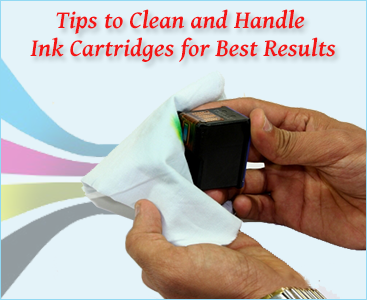
Tips to Clean and Handle Ink Cartridges for Best Results


Get tips to clean and handle ink cartridges for best printing results
First of all you need to establish whether or not your printer ink cartridge needs to be cleaned. Run a test print and look for streaks or other indications such as dots that suggest that the ink cartridge needs to be cleaned. If you feel that the ink cartridge needs to be cleaned then select this option from the printer utility on your printer – anyone that is not sure how to perform this function on their specific printer should refer to their user manual. Once the cleaning is complete, print another test page and check the quality. Repeat the procedure until you are satisfied with the result.

How to clean the inkjet printer head


Almost all printers have a built in cleaning function that you can use to clean the printer head. If you are having difficulty with good quality print outs form your inkjet printer the heads may require cleaning. You should check your user manual to find out the exact procedure that you are supposed to use for your inkjet printer. Should that not work, or your inkjet printer does not have this function, then you should buy a substance that is over 90% alcohol and apply it to the printer head.

Inkjet printer frequently drying out


It is good practice to run a print head cleaning every week. When the print head on the printer is dry, replacing the ink cartridges will not do solve the problem. The print head is located in the printer, not the inkjet cartridge. Running a print through the printer on a regular basis will help prevent drying out.

Best way to handle an ink cartridge


Try to avoid touching the ink nozzle with your fingers when handling an ink cartridge. The ink in an opened inkjet cartridge will usually dry out within a couple of days if it is not in the printer. If an opened ink cartridge will not be used for a period of time, it should be wrapped in plastic wrap and placed in a plastic bag and sealed. If the ink nozzle was to become clogged, you can dissolve the dried ink by soaking the ink cartridge in water for a few minutes. To soak the ink cartridge, place it in a foam container and fill the cup with water until the ink cartridge is halfway immersed in water. To dry the ink cartridge, blot it with a soft lint-free cloth. An ink cartridge should be replaced as soon as you notice the ink is getting low, to avoid damaging the print head.
Usual signs that the ink is low include light prints or white streaks. It is best practice to check the ink level before a large print run to ensure that you do not run out of ink. If the ink cartridge is leaking after a refill, do not put it back into your printer. Sometimes an ink cartridge may leak a small amount of ink after a refill, but once the air pressure inside the ink cartridge equalizes it will stop leaking. In the event that the ink cartridge leaks a lot, put the ink cartridge on a folded piece of paper or in a paper cup until the leak stops, then wipe the ink cartridge clean and put it in the printer. The print head should be cleaned before printing if the printer has not been used for a long time.

Compatible Inkjet and Toner Cartridges


A compatible inkjet or toner cartridge is manufactured by a different company than the original. Compatible inkjet cartridges are as reliable as the original and give as good a print quality too. Claim to the inkjet cartridges are remanufactured so that you can replace your inkjet or toner cartridge without needing to buy a branded version. So if your printer is made by Canon, Dell, Lexmark, HP, Epson or Brother, it is possible to use a compatible inkjet or toner cartridge. Possibly the most important thing is that you save a lot of money. This can be up to 50% savings on inkjet or toner cartridges in some cases.

Originally published at printerinkcartridges.ie

Thursday, 4 December 2014

Where to buy Epson, Brother, HP, Canon, Kodak, Dell and Advent compatible ink cartridges in Cork?

Good quality ink cartridges in Cork are not too hard to find although you may struggle to locate the less popular brands in the city. Any good ink shop in Cork will stock the standard HP, Epson and Canon cartridges but getting your hands on a compatible Dell or Samsung may prove more difficult. An online search will usually reveal that these cartridges are easily obtained and delivered to your door within 1 – 2 days. For example, the Advent ink cartridges that are rarely sold outside PC World or Currys are not readily available in your standard ink shop but are available with next day delivery from online suppliers in Ireland.

Save Money on Best Value Compatible Ink Cartridges For All the Top Printer Brands in Cork
The savings made on the compatible cartridges are too big to be ignored and in some cases locally can be as much as 20% when compared to original brands. On line however, the savings can be up to 70% and in some cases suppliers will give free ink and low cost delivery! If you are using the Google search then your search can be as short as 'compatible ink cartridges Cork' or simply 'ink cartridges'. This will bring you results of the local businesses and the online businesses that deliver to your city within a couple of days. Online suppliers will be more likely to offer bulk packs for the heavy users both at home and in the office. If you print a lot and use a large amount of ink then the bulk packs that contain up to four sets of cartridges will be the best buy for you. These heavily discounted packs can offer big savings and mean that you don't have to order as regularly as you would have done or make those costly trips to your ink shop.

If you decide to shop online then finding a good supplier is crucial and doing your research beforehand will allow you to build up a picture of which suppliers offer discounts and money-back guarantees as well as fast delivery. Many online suppliers are open to negotiation for bulk buying and will offer more discount that they advertise on their website so this is worth bearing in mind and making a phone call can save you even more money!

Monday, 1 December 2014

Sending a Personalized Christmas Card you have Printed on your Home Printer

As Christmas approaches and thoughts turn to Christmas cards, it's always a nice thought to send a personalized card to friends and relatives while keeping the traditional cards for colleagues at work. Printing your own Christmas cards need not be expensive. It allows you to put a photograph of loved ones on the cover and send a truly personal message. Since most home printers accept A4 paper and card (check the maximum weight your printer will accept before you buy the card), most home printers will accept card up to a weight of 160gsm but check your printer handbook or if you don't have it go online and do a Google search. It's best to design your card in either Microsoft Word or Publisher. This will allow you to set your margins so you don't print too near the edge of the card or the crease. Don't forget you will need to leave space for the crease where the fold will be.

Personalized Christmas Cards Printing at Home Using Compatible Inkjet Cartridges and Save your Money

Be adventurous with the design of your card and use a Christmas style of font and if you can't see one in your font drop down search for a free one on Google and install it on your PC. Maybe this is for the more adventurous of those out there who fancy using a font such as Christmas Snow that depicts the text with snow on top! Spend some time on your design and if your digital photos are a little dark then consider making them brighter using the software on your PC to enhance their appearance. The more effort you put into making the photo as appealing as possible the better the end result of the card.

The next part is the printing of the card and may seem like an expensive part with people wondering if it will be costly in ink cartridges. The secret here is to use compatible inkjet cartridges that are a fraction of the cost of the original brands. The compatibles are a great way to save money on your printing and in the case of printing a Christmas card will mean you can print as many as you like without costing the earth. When you print a card with an image on it, the coverage of ink will mean a lot of ink will be used so it's best to use a glossy card – this will give a bright gloss finish and will not be such a drain on the ink cartridge as the ink will not soak into the paper the way if would if the paper was an everyday bond paper.

Imagine the thrill you friends and family, especially those abroad, will receive when they receive that personalized card this Christmas.

Click Here To Get Best Value Compatible Inkjet Cartridges with Multipack Deals

Thursday, 27 November 2014

Is it worth buying a bargain printer if it is on offer in-store or online?

Common Mistakes in Buying a Bargain Printers that may also Avoid Compatible Feature of Ink Cartridges
We are constantly bombarded with the sale of cheap printers in Currys, PC World, Asda, Tesco and many other large stores. Very often these deals seem too good to true, I mean – an all-in-one printer for Euro 40 – Euro 60? The first thing to do is to enquire why the printers are on offer – are they end of line or ex demo, there's nothing wrong with that, it's very likely they are trying to clear stock to make way for newer products. The real work starts in finding out how affordable the replacement ink cartridges are. Do they use a set of 2 ink cartridges or a set of four? 2 ink cartridges can sometimes actually cost more than four depending on the cartridge type. Will the printer work with compatible ink cartridges – it's worth checking that the compatible version of the cartridges are actually available – some printers are so new that the third party manufactures haven't had the time to produce a compatible version and it's still in fact work in progress.

A good way to find out if the compatible cartridges are available is to go online (you could even do this while you are in-store and check out price and availability). The cost of replacement cartridges is actually more important than the initial purchase price of the printer. The printer may last for up to 5 years so the cost of ink over that period of time will determine whether the printer was good value or not. It's worth checking with an online ink supplier to find out if an ink cartridge for the particular printer you are interested in has a good history of compatible with non-originals. There are savings of up to 70% to made using compatibles when compared to original brands. Compatible ink cartridges (these are an ink cartridge that is manufactured by a third party manufacturer rather than the maker of the printer) are great for everyday printing and you can buy them both as an inkjet cartridge and laser toner.

It's unlikely that the store you are purchasing the printer from will give you an unbiased opinion on whether or not you should buy the printer based on the ink cartridges it uses so you may have to carry out the research independently.

Friday, 7 November 2014

Where can I find the best value Epson compatible T1281 black ink cartridges in Cork?

Shop for Compatible Ink Cartridges for Epson Printer and Get Big SavingsEpson T1281 black ink cartridges are used with over 15 different Epson printers making it one of Epson's most popular inkjet printers. These printers use four ink cartridges in total; black, cyan, magenta and yellow and all are available at present as compatible ink cartridges in Cork. There are over 400% savings to be made by buying the compatibles against the original brand Epson cartridges. These giant savings are generally only available online and although savings are available locally at any ink shop in Cork they won’t be to the same degree. The online suppliers who supply next day delivery to Cork or anywhere in Ireland not only offer next day delivery but also free ink or great value bundle packs.

The Epson inkjet printers that use the T1281/2/3/4 ink cartridges were sold at rock bottom prices across Ireland in an effort to push the brand as low cost but the original brand cartridges can prove costly at around €60 per set of four. In contrast the compatible version is available on line for €13.50 and this includes delivery and a free cartridge! Is there an ink shop in Cork could match this price? The compatible T1821 ink cartridges also have a higher volume level than the original brand at 13ml compared to 3.5ml, that’s 4 times as much ink! The compatible ink and toner cartridges are filled to capacity and therefore last longer.

Epson printers in general don’t normally have any problems accepting the compatible version of cartridge. If there are any issues it’s usually a faulty ‘chip’ on the cartridge and this can be resolved by simply replacing the cartridge. The error message that relates to this problem is normally ‘ink cartridge not recognised’. If this error message appears when you first install the cartridge remove and reinsert, if the error message reappears then replace the cartridge with another. If this message appears after you have been using the printer for a while it’s possible that the cartridge has run out and need replacing. Buying the compatible version of any Epson cartridge either from an ink shop in Cork or online will ensure the home and business user big savings on ink and more affordable printing in general.

Thursday, 16 October 2014

How do I decide which inkjet printer is really the best value for me to use at home?

Choosing a new printer can be a nightmare if you don’t first decide on what type of printer need. Basically there are two types of user; light user – this person only uses the printer occasionally, and the heavy user who will regularly produce large print runs.

Choose Which Inkjet Printer is Really the Best Value for Home Uses
When you decide what category that you fall in to, the next step is to price the ink cartridges for the printer. This is where a lot of people get caught out as they are attracted to the low cost printers on sale in the large stores and often buy the printer without giving any consideration to the cost of the ink. Replacing an ink cartridge can be a costly exercise unless you revert to using a good quality compatible.

When choosing a replacement for a broken printer checking the price is important but also make a note of the cost of the original brand ink cartridges. Some printers will use two ink cartridges; black and colour and some photo printers will use between four and six colours. Next check that a compatible version of the ink cartridge is available – if the printer is very recent there may not yet be a compatible version available for that model. If a compatible version is available check the price against that of an original brand and calculate the savings. Lifting the phone and chatting to your online ink supplier before you buy your printer can also pay dividends. They are able to offer advice on the different printers that will accept the compatible inkjet cartridge will little chance of rejection. For example, Epson and Brother inkjet printers are more likely to accept the compatible inks without issue compared to HP printers.

This is particularly useful if you are a heavy user and have a substantial budget for in-house printing over the course of a year. There are big savings to be made by using compatible version of ink and toner. The same rules apply to laser printers although there is less likely to be any issues with toner cartridges than inkjets. The laser printers will be more for a heavy home user or office and they come as mono (black and white) or colour. A busy office will send a lot on ink and toner during the year so a good quality compatible toner can make a big difference to their expenses.

Check Out the Great Range of Compatible Toner Cartridges with Multipack Deals and Save Money


Tuesday, 14 October 2014

I am having a problem in printing my PDF file using Adobe Acrobat

If you are experiencing problems printing an Adobe Acrobat file there are several steps you can take to try and resolve the problem. The first thing to try is to make sure that your printer is properly connected and the cable is securely attached. If your printer is connected via a USB hub then disconnect it from the hub and connect direct into your computer. Switch off the computer then restart after 60 seconds.

If you are experiencing problems in printing an Adobe Acrobat file there are several steps you can take to try and resolve the problem.
Check to ensure you are using the latest printer driver. It’s possible that an updated version of the driver for your printer that will improve the compatibility between your printer and computer. Make a note of your printer model and visit the website of your printer manufacturer and search for printer driver. When you have found the correct driver for your printer click download. After the driver is downloaded you will need to restart your computer.

Of course we are assuming the fact that the printer will not print the PDF is due to a communication problem between the printer and the PDF but if it is a case that the printer will not print because it needs a replacement ink cartridge then that is a different matter entirely. If the printer recognizes the PDF but will not print it, then an error message will be displayed if the ink cartridges are due for replacement. You should go to file> print> properties and select maintenance and from there you can replace the ink cartridge.

If the ink cartridges are not the issue then you could try to print the document as an image. Print as an image can be found by clicking on the advanced dialogue box. The PDF could be a corrupt or damaged file and this will prevent the file from being printed. It will usually flag up a message to inform you this is the case. If the PDF was emailed to you by a third party request them to resend it as it may have become corrupt whilst in-flight. If you created the PDF file yourself, then delete the file and recreate the PDF.

A question that sometimes arises is whether using non-original ink cartridges can cause a PDF to fail to print. Usingcompatible inkjet cartridges will have no effect on whether the PDF will print or not. The quality of the print may be affected if you are using poor quality compatible ink but using third party replacement ink cartridges has no bearing on the issue of a PDF file not being recognised or printed direct from your computer.

CLICK HERE to View Our MULTIPACK Special Deals on Ink Cartridges


Friday, 19 September 2014

My Compatible Black Ink Cartridge Will Not Print for Me

If you have installed your compatible ink cartridge and it will not print there are a few things we need to check first of all. Is there an error message displayed? For example is the error message displaying 'ink cartridge not recognised'? First of all check that the ink cartridges that you received were the correct cartridges for your printer. In some cases the printers are listed on the packaging of the cartridge – however in some cases not all the printers that work with that particular ink cartridge will be listed on the box. The reason for is because some inkjet cartridges will work with over 50 printers of the same brand and it's impossible to fit all the printer models on the packaging.

Get Solutions when your Printer is not printing with compatible Black Ink Cartridges
If you are certain the cartridge is the correct type for your printer, make sure all packaging and plastic wrappers are removed. Next remove any seals that are on the cartridge, there will generally be instructions with the cartridge that will confirm this. There may also be a plastic clip on the cartridge (only in some cases will this be present), remove this also and insert the cartridge gently but firmly until a 'click' is heard. Once the cartridge is inserted correctly the printer will begin ‘charging’ and resetting itself preparing to print. If, when you install the cartridge an error message appears 'ink cartridge not recognised' remove the cartridge, gently wipe the 'chip' area (copper microchip plate) with a soft cloth to remove any static that may be causing any issues. Re-insert the cartridge and see if this will work successfully. You may have to try this 4 or 5 times. If this does not get the cartridge recognized then with the power on remove the power lead from the back of the printer and leave for 5 minutes. This will cause the printer to reset and may clear the memory of the non-recognition of the ‘chip’. If this fails too then the problem is most likely a faulty cartridge so you will need to replace with a fresh cartridge.

If the cartridge is accepted then it is best to perform a head cleaning cycle. This can be accessed via the maintenance section of the utilities - this can be found by going to file print > properties > maintenance. Be sure to print a test page to show the performance of each individual ink cartridge. Performing the head cleaning operation will use ink but will help push the new ink through the print head and maintain print quality.

Click Here and Order for your Ink and Toner Cartridges


Monday, 1 September 2014

I have installed a new ink cartridge in the printer and a message appears saying the cartridge is empty

Most remanufactured cartridges (these are ink cartridges with the print head built-in) may show that the ink is low or display empty ink levels. To overcome this you will have to instruct the printer to ignore the ink levels and allow you to continue printing.

Find Solution If Printer Says New Ink Cartridge is EMPTY
Firstly insert the ink cartridge into the printer and try to print a document. You must wait until an error message appears telling you the cartridge is empty and needs to be replaced. Hold down the cancel button on your printer for 5 seconds then release (the stop button with a diamond shape in the middle). If the message continues to appear then hold down the cancel button for a further 5 seconds. The printer should now allow you to print. However, be aware that the ink levels may still show as that of being low or empty but the printer should now ignore this and continue to print.

Another issue can arise when you inserted ink cartridges into your printer and you receive an error message telling you that the cartridge is missing or faulty. The first thing to do is to check if the inkjet cartridges are the correct ones for your printer, this may sound obvious but mistakes can be made when buying cartridges. If the cartridge is the correct brand, for example if it’s an Epson printer, check that the cartridge is for that particular model. Next, make sure that all the packaging has been removed and any clips or seals are also removed from the ink cartridge. While the printer is still switch on try pulling out the power cable located at the back of the printer and leave out for approximately 15 minutes. This will give the printer a chance to reset itself. If this fails to work you can removing the ink cartridges and gently rub the copper ‘chip’ area with a soft cloth in case there is a build up of dust or static. It’s also a good idea to eliminate any individual cartridge issues by installing one cartridge at a time to determine if it is one rogue ink cartridge that is causing the problem rather than the full set.

Another common issue with cartridges is when you insert the cartridge but the print quality is poor or there is no print at all on the paper. This is usually caused by a non-flow of ink from the cartridge through the print head. In the case of an ink cartridge with an integrated printed head, take a warm damp cloth and gently wipe it across the print head until you see a flow of ink on the tissue or cloth. Once the ink appears then rest the cartridge end down where the ink flows from on some kitchen roll for about 15 or 20 minutes and then reinstall in the printer. You would be advised to perform a head-cleaning test after this.

Click Here to View our Multipack Deals and Offers on Ink Cartridges


Thursday, 28 August 2014

Can I Have My Empty Ink Cartridges Recycled?

Inkjet cartridges are manufactured using plastic components and with plastic being a petroleum based compound it can take up to 1000 years for this product to decompose in a landfill site. Unfortunately every years tens of thousands of these ink cartridges are throw in the bin with little thought given to how the impact the will have on the planet. These ink cartridges will almost certainly end up in landfill or go for incineration. Of course the amount of money spent each year for landfill management is growing because landfills are filling up faster than ever.

Recycle your Empty Ink and Toner Cartridges‎ and Get Benefit

Recycling an empty ink cartridge is also financially profitable. It helps reduce the amount of waste that is generated and helps conserve our raw materials. Below are some little known facts about recycling inkjet cartridges or laser toner cartridges.
  1. Every year over 300 million of these cartridges worldwide are dumped. This adds up to 75,000 tons of rubbish.
  2. A remanufactured or recycled ink cartridge is every bit as good as a new one. When you purchase recycled ink cartridges at a lower cheaper price than the original brand, you are not compromising on quality, you are saving yourself money because cartridge was produced for less by the company that remanufactured the ink cartridge.
  3. All large town and cities and Ireland have an ink and toner cartridge-recycling zone in their refuse site. It may not be obvious to everyone but they do exist and should become part of your monthly routine to visit and dispose of the cartridges sensibly and do you bit for the environment. Many council facilities will pass the cartridges to an organization that will then help charities with a contribution from the profits made on an eventual sale of a remanufactured ink cartridge.
Click Here to Get Compatible Ink and Toner Cartridges and Save Your Money


With sales of compatible ink and toner cartridges on the increase it is important, now more than ever, that we address the problem of disposing of our cartridges in an environmentally friendly manner.

Friday, 8 August 2014

I have set up my printer but it is not Printing

The first thing that springs to mind when the printer will not print is that there is a problem with the ink cartridges. However, through a process of elimination it is possible to resolve the issue and get up and running. First of all it is if your printer will not respond when you try to print a document, in the first instance check it's turned on or that the USB cable hasn't come loose or is disconnected. Computers connected via USB cables or a network, the printer driver must be installed on the computer you’re printing from. On a rare occasion, the printer driver may become corrupted and have to be re-installed.

Resolve the issue if your printer is not working when you try to print a document

This can be done using the disc supplied with the printer or by downloading the driver direct from the manufacturer's website – this is more likely to have the latest driver for your printer. Printer manufacturers should have a page from where you can download available software for different models and operating systems. It may be necessary also to update the printer driver so that it's compatible with a new operating system – this is what many consumers buying Windows 8 computers have discovered.

If your are unsure if your computer already has the correct driver installed for the printer you want to use you can easily check this with Windows. Go to the printer folder from the Start menu or Control Panel. Depending on which version of Windows you have, it will be named either Printers, or Printers and Devices. When you available printers, with offline open this folder it will show a list of printers grayed out. If printer you want to use is marked as 'offline', check and ensure it’s properly connected to your PC or network and check to the 'online' position. The default printer will have a green check next to it. You can change the default printer by right clicking on it and following the instructions. When you right click on a printer and click on Printing Preferences this will reveal the printer driver settings. By adjusting the printer preferences, you are able to adjust different functions, including the paper size and type, print quality, and duplex printing (if available on your printer). The printer software disc almost always includes an interface to access the printing functions, but it would be quicker to work straight from the printer driver.

When it comes to the decision as to whether to use original or compatible inkjet or toner cartridges at no point while loading printer drivers or installing software is there any reference to the type of ink cartridge you are going to choose to use, however it is likely that in some printers – HP in particular that a compatible ink cartridges might not be recognized. The vast majority of printers will accept compatibles and therefore allow you to make big savings on your printer ink.

Click Here to Get Best Value Multipack Deals for Your Ink Cartridges


Tuesday, 20 May 2014

Inkjet Cartridges Multipack Offers

Ink cartridges at Great Prices!
Printerinkcartridges.ie have several special offers on inkjet cartridges. Look out for our special multipack ink cartridge deals, for Epson, HP, Canon, Lexmark, Dell and Brother inkjet cartridges. Big savings are available on the multipack inkjet cartridges on selected inkjet printer models.

Simply scroll down through the inkjet cartridges relating to your printer model to see if your inkjet printer has an inkjet multipack offer.


Savings for multipack inkjet cartridges


Epson T559 MULTIPACK inkjet cartridge: set of 6 inkjet cartridges Black, Cyan, Magenta, Yellow, Light Cyan, Light Magenta. €38.00 inc VAT

Epson T559 inkjet cartridge ordered individually: €8 each; total €48 inc VAT

Epson T054 MULTIPACK inkjet cartridge: set of 8 inkject cartridgesGloss Optimiser, Black, Cyan,Magenta, Yellow, Red, Matte Black, Blue. €26.00 inc VAT

Epson T559 inkjet cartridge ordered individually: €4 each; total €32 inc VAT

Canon BCI24 MULTIPACK inkjet cartridge: 3 x Black 3 x Colour. €18.00 inc VAT

Canon BCI24 inkjet cartridge ordered individually: €5 each inc VAT

Brother LC700 MULTIPACK inkjet cartridge: Black, Cyan, Magenta, Yellow. €17.50 inc VAT

Brother LC700 ordered individually €6 each; total €24.00 inc VAT

Lexmark 10N0026 TWINPACK: Black & Colour €27.50 inc VAT

Lexmark 10N0026 ordered individually: €15 i

Wednesday, 14 May 2014

How to Choose the Right Photo Paper for your Printer

Choosing the right photo paper for your printer can make all the difference when printing, displaying and typing to preserve the life of your photos. Not all photographic paper is the same and it’s a combination of good quality ink cartridges and photo paper that give the best results. The ideal paper for your photo printing will depend on the printer you are using but you will not use the standard photo paper for images.

Pick the Best Photo Paper for Your Printer

Photos printed on plain paper tend to look lifeless and the colours are usually very subdued, details in the highlights and shadows disappear. Plain paper will also become saturated with wet ink and this will cause it to crinkle. Plain paper is best for every day use or proofing prior to printing your finished article. A photo printer is ideal and this can use up to six individual ink cartridges black, yellow, cyan, magenta, light cyan and light magenta. An individual ink cartridge system is perfect for replacing the colours as they run out rather than replacing an expensive colour or black ink cartridge.

A middle of the road paper is available for printing documents that mix text and photos. This paper is in between the plain paper and photo paper in term so quality and will give excellent result for in-house brochures or menus and responds well to both ink cartridge and laser toner printers.

A paper specially formulated for photo printing is what is required to obtain the optimum results in photo printing. These are specifically designed to work with both inkjet and laser printers and are glossy and less porous than the plain papers. Photo paper looks and feels different to plain paper and also acts differently when it comes into contact with an inkjet cartridge. Photo paper doesn't become saturated with ink, the colours are lot more vibrant and the photo displays much more details than a standard plain paper.

The photo will also print excellent quality enlargements – the type that look as though they have come from a professional photo lab. These coated glossy paper are coated to help the ink permeate the paper properly or the laser toner to bond to the surface and prevent fading over time and discoloration. Drying time is greatly reduced and the paper is also protected from smudging and fingerprints. Canon and Epson offer a great selection of photo printers that will accept replacement ink cartridges that will greatly reduce the cost of producing quality photo prints.

Sunday, 11 May 2014

How to Improve the Print Quality of Advent Inkjet Cartridges ?

What should I do if the prints from my Advent printer are poor quality or are missing the black ink?


Follow Helpful Steps to get better quality print from your Advent Printer
If you experience problems with the quality of your print outs using your Advent printer it may be the ink cartridges or the print heads that are causing the problem. In the first instance, check that the ink cartridge compatible or original brand is installed properly. Lift the printer access door and remove the Advent ink cartridge making sure that any tape has been removed from the cartridge. Remember to check both the black and the colour ink cartridges. If this checks out ok then there is the possibility that the print heads are clogged and you need to perform a head cleaning procedure.

Head cleaning operations can vary from printer to printer but basically it involves giving the printer via the computer, the command to clean the print heads to allow the ink to follow through the ink cartridge. It may be that the issue is with the color or the black print head but as it's not possible to clean the colors individually follow the following tips.

> First of all open or create any Microsoft word document.
> Step 1. Go to Print in drop down menu.
> Step 2. Select Properties
> Step 3. Select Maintenance
> Step 4. Head Cleaning

You are able to clean the heads and print out a test sheet afterwards. This is to show you if the heads have cleaned OK, if they haven't cleaned OK then you need to repeat step 4 again. It will ask you if you want to clean the heads again or finish, you will probably need to clean the heads 3 or 4 times at least to clear any blockages.

Compatible Advent ink cartridges are generally very reliable and do not give problems, but as with any brand of inkjet cartridge, from time to time there may be issues arising. If the problems still persist after carrying out the head cleaning procedure then the next step is to replace the ink cartridge. The test sheet will show you if it is the black or one of the colours that is not printing correctly so replace the ink cartridge that is printing poorly first in an effort to eliminate the source of the problem.


Friday, 2 May 2014

Why does my printer say its offline when its not?

Follow our Useful Tips to Troubleshoot your Printer Problems and Get Solution
On some occasions for no apparent reason your printer may declare itself offline and refuse to print. This can be very frustrating and often will happen with no warning. The problem is not much different to a printer not recognizing its ink cartridges, as it is purely a communication problem. The Laptop or PC cannot see the printer and therefore any links to between the printer and computer should be checked. The first and most obvious thing to look for is to make sure that the USB lead is attached – it may have worked itself loose or become disconnected in some way. If this is not the problem then try switching the printer off and on again leaving about 2 minutes in between, this will help the printer reset itself and may solve the problem.

If this fails to resolve the issue you can try the following steps:
  1. Go to 'Start' Menu
  2. Select 'Devices and Printers'
  3. Double click or right click on your printer
  4. Click the link that says 'Printer Offline'
  5. Click 'Printer' at the top
  6. Select and uncheck 'Printer Offline'
  7. Print
Another common problem can be the failure of a printer to recognize the ink cartridge. Again, this is a communication problem between the 'chip' on the inkjet cartridge and printer. Firstly try switching the printer off and on an again, leaving about 2 minutes in between. If this doesn't work then try pulling the power cable out of the printer while the printer is switched on, leaving for 2 minutes, and plugging back in again and switching back on. This will force the printer to recalibrate itself and may clear the problem. If this fails to work then remove the ink cartridge (if it is one particular cartridge that is giving the problem) and clean the copper 'chip' with a soft cloth. Be especially careful not to touch the copper area of the inkjet cartridge with you hands. If this does not work it's likely the ink cartridges is faulty and should be exchanged for a replacement.

Wednesday, 9 April 2014

I am getting the message as Incompatible Older Generation Cartridge Installed

Some recently manufactured HP printers are throwing up some issues with their ink cartridges. After the replacement ink cartridge (original brand or remanufactured) has been installed, an error message appears on the product control panel and the printer will not print. The message reads that an older generation cartridge has been installed. The message displayed on the computer screen may give additional information such as the ink cartridge used is of an older generation and will not work in the printer.

Have Patience When you are Replacing Original and Remanufatured Ink Cartridges for your HP Printer

This problem is affecting a range of HP printers that use the HP cartridge HP 301 Black and Colour. The range of printers affected is HP Deskjet 1010/1510/2540, Envy 4500/5530 and Officejet 4630. HP have developed these printers to use the cartridges they have manufactured and to not work with either old original brand ink cartridges or remanufactured versions of the same. What can you do? Absolutely nothing at the moment apart from buy the 'new generation' cartridges.

HP' reasoning on this is skeptical. They maintain that it’s to facilitate the future of the printers they are manufacturing but the more cynical HP’s users feel it’s a ploy to make it difficult to use the more affordable remanufactured or compatible ink cartridges. This all began in September 2010 when HP decided to update certain ink cartridges. They also reduced the volume levels of certain ink cartridges and said that a decrease in price would follow. They advise that you should check the expiry date of the ink cartridge before you open it. This only applies to original brand cartridges and not compatibles or remanufactured.

If the cartridge is still in the packaging find the warranty end date on the reverse of the package. If there are a v1 several places to the right of the date then the cartridge is the updated version. If the ink cartridge has been removed from the packaging and opened, check the product number on the base of the cartridge. If it has the letters 'CN' or 'CR' as a prefix then it is a new generation cartridge. The general feedback from people who have bought the printers that use the new generation cartridges is that while they are happy with the performance of the printer they are unhappy about the cost of the original brand ink cartridges and the fact that some of the older generation cartridges will not work with the printer.


Thursday, 3 April 2014

My printer wont print. I bought new Kodak ink but it did not work

A typical problem that people with Kodak printers encounter is difficulty with printing after inserting a replacement ink cartridge. If you have tried to print a colour document and only some or none of the ink are printing then it would be a good idea to follow the steps below:
Kodak Printer will not Print ?? Get your Solution Here..
  1. Firstly remove all the ink cartridges from the printer.
  2. Check to make sure that any tape has been removed from the cartridges.
  3. Clean the contact, this is the small hole where the ink comes out as well in the printer itself, a cotton bud can be a useful tool for this. You can clean the contacts on the ink cartridge with a small amount of warm water on the cotton bud.
  4. If some of the cartridges are low, replace them with new cartridges.
  5. Next, turn off the printer and leave switched off for 2 minutes.
  6. Insert the ink cartridges and see if this has helped clear the problem.
  7. If you have some of your old original brand Kodak ink to hand you can try these in an effort to see if it is the compatibles that are causing the problem.
  8. If the original cartridges fail to work then the issue is likely to be with the printer and not the ink cartridges.
  9. Running the head-cleaning procedure might help if the genuine cartridges work but the compatibles do not.
All of the suggestions above are designed to find the faulty cartridges by a process of elimination. Good quality Kodak compatible ink cartridges generally are problem free but from time to time there may be issues with cartridges drying up through infrequent use. It’s a good idea to run a document through the printer from time to time to keep the ink cartridge ‘fresh’ and the ink flowing.

Shop for Kodak Ink Cartridges with Multi-pack Special Offers


Saturday, 22 March 2014

How can I find a printer that gives me the best value for money?

Save Money on Printer Ink Cartridges in Ireland
It's impossible to tell just by looking at the cost of a set of ink cartridges, or by looking at the price of a printer that's on special offer, whether you are going to get good value for money when it comes to the number of pages you print.

The value for money is really calculated by the number of prints you are able to produce from each full set of ink cartridges. Some of the cheaper cartridges may only produce a few prints, and work out expensive in the long run.

A good way to calculate the value of the printer before buying is to calculate the cost of the printer ink and the number of pages you are able to print from a set of cartridges. This should help you to find the best value printer to buy. The cost of ink cartridges in Ireland generally is reducing for the home and business user but only if you make the switch to compatibles.

Typically, an inkjet printer whose printing costs are calculated to be more than 55% more than the average cannot be the best value buy irrespective of how well they print. So if you do your homework on the running costs of the ink cartridges the printer uses you can be sure that you’re getting a good printer that won't end up costing you 2 fortunes in ink.

Another reason a printer can sometimes seem expensive to run is because some ink will be lost when cleaning blockages. If a long amount of time is left in between printing the printer may automatically clean its print heads the next time you have a print run. The cleaning procedure itself will use ink - sometimes a large of ink can be used up if an ink cartridge is refusing to print properly. Printer manufacturers claim that automatic print-head cleaning procedures are necessary to ensure you get the very best prints every time, but independent tests have discovered that when it comes to print-head cleaning, some printers go through more ink cartridges than others.

The printer running costs should include the cost of the ink used for head cleaning. Independent test have shown that the most wasteful printers can use up to 500% more printer ink when leaving time between print jobs, and therefore having to run the head cleaning procedure. This is compared with printing an equal number of pages at one time. The former will dramatically increasing printing costs.