Very often when you buy compatible ink cartridges (and occasionally original brand ink) the model of the printer does not appear on the packaging of the box. Alarm bells immediately start to ring and you can become wary about opening the cartridge box. Even a quick call to the supplier might not allay your fears but the simple truth is that there is so many printer models added to the list of ink cartridges sold by all the major manufacturers that it's virtually impossible to list every printer on the box! A good example of this would be the HP364 ink cartridges. HP was certainly thinking a head when they first developed these cartridges, as there are over 60 printers that will use these same cartridges.
A good way to check for yourself is to read the ink cartridge code from the existing cartridge in your printer. If it matches the code on the box then you know you have the correct cartridge. If there are no ink cartridges in the printer then Google your printer model and search for the cartridges it uses – this will give you the code you can check off against the code on the box you have received. If you have received the incorrect cartridges, return them to your supplier and request the correct ones.
Showing posts with label HP Ink Cartridges. Show all posts
Saturday, 7 June 2014
Wednesday, 9 April 2014
I am getting the message as Incompatible Older Generation Cartridge Installed
Some recently manufactured HP printers are throwing up some issues with their ink cartridges. After the replacement ink cartridge (original brand or remanufactured) has been installed, an error message appears on the product control panel and the printer will not print. The message reads that an older generation cartridge has been installed. The message displayed on the computer screen may give additional information such as the ink cartridge used is of an older generation and will not work in the printer.
This problem is affecting a range of HP printers that use the HP cartridge HP 301 Black and Colour. The range of printers affected is HP Deskjet 1010/1510/2540, Envy 4500/5530 and Officejet 4630. HP have developed these printers to use the cartridges they have manufactured and to not work with either old original brand ink cartridges or remanufactured versions of the same. What can you do? Absolutely nothing at the moment apart from buy the 'new generation' cartridges.
HP' reasoning on this is skeptical. They maintain that it’s to facilitate the future of the printers they are manufacturing but the more cynical HP’s users feel it’s a ploy to make it difficult to use the more affordable remanufactured or compatible ink cartridges. This all began in September 2010 when HP decided to update certain ink cartridges. They also reduced the volume levels of certain ink cartridges and said that a decrease in price would follow. They advise that you should check the expiry date of the ink cartridge before you open it. This only applies to original brand cartridges and not compatibles or remanufactured.
If the cartridge is still in the packaging find the warranty end date on the reverse of the package. If there are a v1 several places to the right of the date then the cartridge is the updated version. If the ink cartridge has been removed from the packaging and opened, check the product number on the base of the cartridge. If it has the letters 'CN' or 'CR' as a prefix then it is a new generation cartridge. The general feedback from people who have bought the printers that use the new generation cartridges is that while they are happy with the performance of the printer they are unhappy about the cost of the original brand ink cartridges and the fact that some of the older generation cartridges will not work with the printer.

This problem is affecting a range of HP printers that use the HP cartridge HP 301 Black and Colour. The range of printers affected is HP Deskjet 1010/1510/2540, Envy 4500/5530 and Officejet 4630. HP have developed these printers to use the cartridges they have manufactured and to not work with either old original brand ink cartridges or remanufactured versions of the same. What can you do? Absolutely nothing at the moment apart from buy the 'new generation' cartridges.
HP' reasoning on this is skeptical. They maintain that it’s to facilitate the future of the printers they are manufacturing but the more cynical HP’s users feel it’s a ploy to make it difficult to use the more affordable remanufactured or compatible ink cartridges. This all began in September 2010 when HP decided to update certain ink cartridges. They also reduced the volume levels of certain ink cartridges and said that a decrease in price would follow. They advise that you should check the expiry date of the ink cartridge before you open it. This only applies to original brand cartridges and not compatibles or remanufactured.
If the cartridge is still in the packaging find the warranty end date on the reverse of the package. If there are a v1 several places to the right of the date then the cartridge is the updated version. If the ink cartridge has been removed from the packaging and opened, check the product number on the base of the cartridge. If it has the letters 'CN' or 'CR' as a prefix then it is a new generation cartridge. The general feedback from people who have bought the printers that use the new generation cartridges is that while they are happy with the performance of the printer they are unhappy about the cost of the original brand ink cartridges and the fact that some of the older generation cartridges will not work with the printer.
Thursday, 21 November 2013
5 Easy Steps to installing HP ink Cartridges
Once you have bought your HP ink cartridge and assuming that you may not have replaced the cartridges recently, here are some useful tips on the installation of HP ink cartridges.
- Removing and installation of the Printer Cartridge
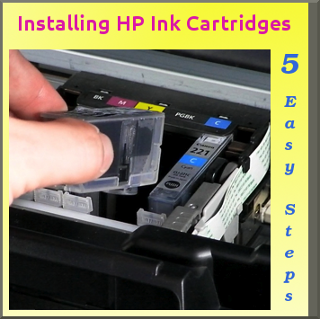
Open the Printer. Make sure the printer is switched on! If the printer is not switched on when the HP ink cartridge access-door is raised, the printer will not release the cartridges to allow the cartridge change to take place. If the ink cartridges are not docked properly on the right hand side then it’s possible you may damage the printer if try to remove them. If the scraper bar is blacking the cartridges you can push the scraper bar very gently and then press the power button. So, when you have turned on the power lift the printer cover and wait until the ink cartridges move to the right hand side of the printer. - Removing the used ink cartridges.
Press down very gently on the top of the cartridge catch. The pull out the bottom of the catch so it unhooks and then slide out the ink cartridge. - When to use a cartridge protector.
The cartridge protector is not just there to protect the ink cartridge in transit it. It's a very useful for removing a working HP ink cartridge such as the photo black. This helps with the temporary storage of the HP photo ink cartridge. - Installing the new HP ink cartridges.
First of all remove the protective tape, don't touch the copper strip - this may affect the cartridge recognition - if the ink cartridge is a compatible or non-OEM - it will be in a plastic cover. When you remove the plastic cover it can be advantageous to gently wipe the copper area with a soft cloth to remove any static build up caused by the plastic bag. This can sometime also affect the printer's ability to recognise a compatible HP ink cartridge. - Cartridge contacts and Nozzles.
Make sure that you hold the ink cartridge so that the nozzles are facing down and that the contact is facing toward the printer. Gently slide the cartridge into its carrier. Hp cartridges marked with a triangle fit into the slot on the left and cartridges with a square or pentagons shape fit into the right hand slot in the carrier. Next, push the cartridge into the carrier until it makes a click sound and push down on the cartridge latch until it snaps shut.
Subscribe to:
Posts (Atom)
