Showing posts with label Troubleshoot. Show all posts

Tuesday, 14 April 2015

My print quality is poor and I think my print heads may be clogged. How do I clean the print heads?

Use print head cleaning procedure to get best quality print outs
Add caption

Poor quality prints are a common occurrence and can have several possible causes. Sometimes we need to eliminate the probable causes one at a time before going to the expense of replacing an ink cartridge. The first step is to perform a test print out to see exactly where the problem is. Is the issue the ink coverage or is it in the alignment of the print? The alignment problem is easily noticeable as the text may be slanted or distorted but other print clearly enough. The other problem that you can encounter is the obvious poor quality of the print with parts missing or gaps appearing in the text or image.

Printing a test print will reveal where the problem is. To print a test page go to file print > properties > maintenance > print head alignment. You will need to load several sheets of paper in the printer as you will more than likely be printing out several test pages. The alignment test page will show if the letters are slanted and ask you to choose the best settings from the display in an effort to reset the alignment. It’s quite rare for the alignment to require must adjustment but it does happen from time to time. If the alignment is not the issue then it’s time to print out a text page to check the print quality.

To print this test page go to file print > properties > maintenance > nozzle check. This will print four lines of each colour and display any broken lines or gaps in the printing. If the four lines are not completely solid, it will be necessary to perform a head cleaning procedure in an effort to clear any blockages either in the print head or ink cartridges. To perform this the head cleaning procedure go to file print > properties > maintenance > head cleaning. After each head cleaning procedure it is necessary to print a test page and you will be prompted to do this by the cleaning programme.

If the print out is not to the standard required it may be necessary to perform this procedure several times. This of course will affect the life of the ink cartridge as quite a lot of ink is dispensed during the head cleaning as it is forced through the print head as it tries to clear any blockage. If none of the above make much difference to the print quality it is worth trying a new cartridge in case one of the cartridge is faulty – try replacing the black or one of the colour inks that show up particularly bad on the test page print out. In some cases the print head may be worn and require replacement, in this case it may be more economical to replace the printer depending on the value of the current printer.

Originally published at printerinkcartridges.ie

Tuesday, 31 March 2015

My black ink cartridge will not print but my colour ink cartridge is printing perfectly

Useful instructions if your printer fails to print with black ink cartridges
If your printer will not print black on your document then there are a couple of possible issues that might need resolving. First of all has the printer given a warning about low ink or has the ink actually run out and need replacing? If so, then replace the ink cartridge as directed. It’s a myth that you don't need black ink to print a colour image or indeed that you can print black text without the printer requiring a colour cartridge. The majority of printers require both the black and colour ink cartridges to be recognised as having ink and will not operate if one of the colours is out of ink.

If you have just installed your ink cartridges correctly and there are no error messages relating to the cartridges, but the black ink is still not showing when you print a document then the issue may be a blocked print head. The first step in checking this out is to go to the printer maintenance facility and run a test print to see if there is a trace of black printing at all. You can access this procedure in a couple of ways, either go to your printer icon at the bottom of your screen and select printer utility > maintenance > clean heads or go to file print and select printer utility > maintenance > clean heads. Performing a head cleaning procedure will force ink from the ink cartridge through the print head and clear any blockage that may be preventing the printing of the document. It’s important to remember that each time you perform a head cleaning procedure you print a test page to monitor the improvement of the print quality. The printer is clever enough to know that if you decide to perform another head cleaning procedure after printing a test page that the blockage was not cleared and will force a greater amount of ink through in a further attempt to clear the blockage. Although you may have no real option but to see it through, the downside of performing several head cleaning procedures is that it uses a lot of ink and will drain the ink cartridge quite fast.

The head cleaning will usually clear up the issue of the black cartridge not printing but if it’s still the case that the printer will not print black or the quality will not improve it’s possible that the print heads in the printer are the issue. Depending on the original cost of the printer it may be more economical to replace the printer than try to have the print head replaced.

Wednesday, 11 March 2015

My printer is broken and I still have Epson ink cartridges, can I use them in another printer?


Use your left Epson Ink Cartridges in another printer when old printer is broken
Many printers eventually fail or come to the end of their life and we are often left with a bundle of ink cartridges we bought and no printer to put them in. The first thing most of us do is to try and find a printer that will accept the same ink cartridge and just buy this replacement. This can prove to be very difficult especially if we have had the printer for several years as the likelihood is that the printer is discontinued. People do not realise however, that printer manufacturers such as Epson make many different printer models that work with the same cartridges. This means that we are not just limited to finding the same printer that has failed on us but there may be several other models still currently on the market.

The way to ascertain the models of the other printers that use the same cartridge is to firstly check the packaging of the ink cartridge to see if it lists the models of printers that the cartridges works with. If it does then they may be up to 10 or 15 models that you can start searching for on Amazon or Ebay. It’s possible of course that these models are also discontinued but there may still be some available for sale privately on these auction websites. In the case of HP, they have an ink cartridge range called the HP364 colours and they work with over 50 different HP printer models. So without initially being discouraged, it’s worth researching to find out if any of these printers are available. If you hit a brick wall with this line of enquiry then the next option is to contact your ink supplier and see if they can offer any advice on where to locate a printer that will work with your cartridges. If this is your original supplier of the cartridges you can no longer use, it’s also worth asking them will they take the unused cartridges back and give you a credit against a future purchase when you obtain your new printer. If you can show that you have bought the cartridges within the last 6 months then the supplier may well decide to take the ink cartridges back if they are still in a saleable condition.

Most good quality compatible ink cartridges have a shelf life of up to 2 years and will work without any problems, this also depends on how the cartridges were stored, but its worth asking you supplier as all they can say is sorry, not on this occasion.

First Published at printerinkcartridges.ie

Monday, 2 March 2015

Follow Useful Suggestion When Advent Ink Cartridges Not Recognized By Printer

Advent ink cartridges now come in two editions, the early edition that work with early Advent printer models such as AW10 and the new generation ink cartridge that facilitates the Advent AWP10 printer. The old generation cartridges will not work with the latest AWP10 printers and the message ‘ink cartridges not recognised’ will appear in the dialogue window. There is not way to get the earlier generation cartridges to work, you must return them to the supplier you bought them from and ask for the newer ink cartridge. It’s worth mentioning the model of the printer to the supplier when you are ordering the cartridge in the first place to avoid any disappointment.

Follow Useful Suggestion When Advent Ink Cartridges Not Recognized By Printer
The good quality compatible second generation ink cartridges will work fine with the Advent printers. These printer is manufactured on behalf of PC World and Currys. It is very similar in its workings to the earlier Kodak models that unfortunately are no longer manufactured. These printer is a good all rounder for general-purpose printing and uses 2 ink cartridges, black and colour. These ink cartridges are not readily available, as compatibles so you might have a bit of searching to do online for them but there are good quality compatibles out there and the savings you make will make the searching worth it.

There are a limited number of Advent printer models as the manufacturers never intended to flood the market with a variety of printers. This means that the new generation black and colour ink cartridges that are available will work with all the printer models. There are good value two packs available on line with even bigger savings offered with four pack bundle deals This would consist of two black and two colour cartridges and keep a home user in ink for some time to come. The best deals for Advent printer ink cartridges are undoubtedly online and with many free gifts also offered by suppliers as an incentive to buy, shopping online for these cartridges can be an enjoyable experience.

If there are any issue with the compatible cartridges then you should contact your supplier but its possible from time to time that the heads on the printer may become clogged and necessitate the need to perform a head cleaning procedure. This can happen to any printer, not just an Advent. This procedure is straight forward and easy to perform. You can access the procedure through your printer utilities (usually located in your printer and fax section) or if you are in Microsoft Word, open a file and simply go to file> print> properties> maintenance> head cleaning. This should sort out any issues such as poor print quality and allow you to print a test page to find out where the issues with your ink are.

Wednesday, 14 January 2015

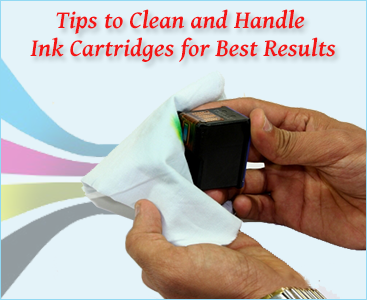
Tips to Clean and Handle Ink Cartridges for Best Results


Get tips to clean and handle ink cartridges for best printing results
First of all you need to establish whether or not your printer ink cartridge needs to be cleaned. Run a test print and look for streaks or other indications such as dots that suggest that the ink cartridge needs to be cleaned. If you feel that the ink cartridge needs to be cleaned then select this option from the printer utility on your printer – anyone that is not sure how to perform this function on their specific printer should refer to their user manual. Once the cleaning is complete, print another test page and check the quality. Repeat the procedure until you are satisfied with the result.

How to clean the inkjet printer head


Almost all printers have a built in cleaning function that you can use to clean the printer head. If you are having difficulty with good quality print outs form your inkjet printer the heads may require cleaning. You should check your user manual to find out the exact procedure that you are supposed to use for your inkjet printer. Should that not work, or your inkjet printer does not have this function, then you should buy a substance that is over 90% alcohol and apply it to the printer head.

Inkjet printer frequently drying out


It is good practice to run a print head cleaning every week. When the print head on the printer is dry, replacing the ink cartridges will not do solve the problem. The print head is located in the printer, not the inkjet cartridge. Running a print through the printer on a regular basis will help prevent drying out.

Best way to handle an ink cartridge


Try to avoid touching the ink nozzle with your fingers when handling an ink cartridge. The ink in an opened inkjet cartridge will usually dry out within a couple of days if it is not in the printer. If an opened ink cartridge will not be used for a period of time, it should be wrapped in plastic wrap and placed in a plastic bag and sealed. If the ink nozzle was to become clogged, you can dissolve the dried ink by soaking the ink cartridge in water for a few minutes. To soak the ink cartridge, place it in a foam container and fill the cup with water until the ink cartridge is halfway immersed in water. To dry the ink cartridge, blot it with a soft lint-free cloth. An ink cartridge should be replaced as soon as you notice the ink is getting low, to avoid damaging the print head.
Usual signs that the ink is low include light prints or white streaks. It is best practice to check the ink level before a large print run to ensure that you do not run out of ink. If the ink cartridge is leaking after a refill, do not put it back into your printer. Sometimes an ink cartridge may leak a small amount of ink after a refill, but once the air pressure inside the ink cartridge equalizes it will stop leaking. In the event that the ink cartridge leaks a lot, put the ink cartridge on a folded piece of paper or in a paper cup until the leak stops, then wipe the ink cartridge clean and put it in the printer. The print head should be cleaned before printing if the printer has not been used for a long time.

Compatible Inkjet and Toner Cartridges


A compatible inkjet or toner cartridge is manufactured by a different company than the original. Compatible inkjet cartridges are as reliable as the original and give as good a print quality too. Claim to the inkjet cartridges are remanufactured so that you can replace your inkjet or toner cartridge without needing to buy a branded version. So if your printer is made by Canon, Dell, Lexmark, HP, Epson or Brother, it is possible to use a compatible inkjet or toner cartridge. Possibly the most important thing is that you save a lot of money. This can be up to 50% savings on inkjet or toner cartridges in some cases.

Originally published at printerinkcartridges.ie

Tuesday, 14 October 2014

I am having a problem in printing my PDF file using Adobe Acrobat

If you are experiencing problems printing an Adobe Acrobat file there are several steps you can take to try and resolve the problem. The first thing to try is to make sure that your printer is properly connected and the cable is securely attached. If your printer is connected via a USB hub then disconnect it from the hub and connect direct into your computer. Switch off the computer then restart after 60 seconds.

If you are experiencing problems in printing an Adobe Acrobat file there are several steps you can take to try and resolve the problem.
Check to ensure you are using the latest printer driver. It’s possible that an updated version of the driver for your printer that will improve the compatibility between your printer and computer. Make a note of your printer model and visit the website of your printer manufacturer and search for printer driver. When you have found the correct driver for your printer click download. After the driver is downloaded you will need to restart your computer.

Of course we are assuming the fact that the printer will not print the PDF is due to a communication problem between the printer and the PDF but if it is a case that the printer will not print because it needs a replacement ink cartridge then that is a different matter entirely. If the printer recognizes the PDF but will not print it, then an error message will be displayed if the ink cartridges are due for replacement. You should go to file> print> properties and select maintenance and from there you can replace the ink cartridge.

If the ink cartridges are not the issue then you could try to print the document as an image. Print as an image can be found by clicking on the advanced dialogue box. The PDF could be a corrupt or damaged file and this will prevent the file from being printed. It will usually flag up a message to inform you this is the case. If the PDF was emailed to you by a third party request them to resend it as it may have become corrupt whilst in-flight. If you created the PDF file yourself, then delete the file and recreate the PDF.

A question that sometimes arises is whether using non-original ink cartridges can cause a PDF to fail to print. Usingcompatible inkjet cartridges will have no effect on whether the PDF will print or not. The quality of the print may be affected if you are using poor quality compatible ink but using third party replacement ink cartridges has no bearing on the issue of a PDF file not being recognised or printed direct from your computer.

CLICK HERE to View Our MULTIPACK Special Deals on Ink Cartridges


Tuesday, 7 October 2014

My printer is connected to my computer but not printing

If a problem exists within your printer i.e. the printer driver or the application you are trying to print from try the following suggestions to identify and hopefully solve the issue.

Find useful suggestions if your printer is connected to your computer but it is not printing
Firstly, make sure your printer is switched on and ready to use and that the correct printer is set to default. This is accessible in printers and devices from your Start menu. If the printer is correctly set as the default printer or you need to select it as the one you are about to use then try to print a test page.

Try printing from Notepad or from a Word document. This verifies that the printer driver is correct, and confirms that the problem lies with the application. If you cannot print from Notepad or a Word file, the problem lies with the printer driver.

It may be necessary to uninstall the printer driver and install a newer version which you can download form your printer brand website. If the printer will print a test sheet but the print quality is poor then you may need to perform a head cleaning procedure. If the ink cartridges have not been used for a while it's possible that the print heads have become blocked. To perform a head cleaning procedure – depending on your printer – you can either complete this directly on the printer or through your PC and a Notepad or Word document.

Blocked print heads do not mean there is a problem with the ink cartridge as such, the ink has become hard and congealed around the print head and can be cleaned using one of the following methods.

For those printers that come with an interface, (this is basically a control panel normally located in a window on the front of the printer), this allows you to perform certain functions within the printer independent to the PC. With the printer switched on, move the arrow until you find maintenance then move the arrow until you locate head cleaning. Follow the operating instructions it gives making sure you have plenty of paper in the printer. It may take several attempts to clear a blocked printer head and even result in having to replace an ink cartridge as this procedure does use a lot of ink. The second option is from your PC – go to file > properties > maintenance > head cleaning. If there is no printer interface then you will have no choice but to perform this procedure. Remember it may take several attempts to clear a stubborn blockage.

It is more likely that this will happen when using compatible inkjet cartridges, as they do not contain the chemical found in original brand cartridges that prevents hardening of the ink.

Monday, 1 September 2014

I have installed a new ink cartridge in the printer and a message appears saying the cartridge is empty

Most remanufactured cartridges (these are ink cartridges with the print head built-in) may show that the ink is low or display empty ink levels. To overcome this you will have to instruct the printer to ignore the ink levels and allow you to continue printing.

Find Solution If Printer Says New Ink Cartridge is EMPTY
Firstly insert the ink cartridge into the printer and try to print a document. You must wait until an error message appears telling you the cartridge is empty and needs to be replaced. Hold down the cancel button on your printer for 5 seconds then release (the stop button with a diamond shape in the middle). If the message continues to appear then hold down the cancel button for a further 5 seconds. The printer should now allow you to print. However, be aware that the ink levels may still show as that of being low or empty but the printer should now ignore this and continue to print.

Another issue can arise when you inserted ink cartridges into your printer and you receive an error message telling you that the cartridge is missing or faulty. The first thing to do is to check if the inkjet cartridges are the correct ones for your printer, this may sound obvious but mistakes can be made when buying cartridges. If the cartridge is the correct brand, for example if it’s an Epson printer, check that the cartridge is for that particular model. Next, make sure that all the packaging has been removed and any clips or seals are also removed from the ink cartridge. While the printer is still switch on try pulling out the power cable located at the back of the printer and leave out for approximately 15 minutes. This will give the printer a chance to reset itself. If this fails to work you can removing the ink cartridges and gently rub the copper ‘chip’ area with a soft cloth in case there is a build up of dust or static. It’s also a good idea to eliminate any individual cartridge issues by installing one cartridge at a time to determine if it is one rogue ink cartridge that is causing the problem rather than the full set.

Another common issue with cartridges is when you insert the cartridge but the print quality is poor or there is no print at all on the paper. This is usually caused by a non-flow of ink from the cartridge through the print head. In the case of an ink cartridge with an integrated printed head, take a warm damp cloth and gently wipe it across the print head until you see a flow of ink on the tissue or cloth. Once the ink appears then rest the cartridge end down where the ink flows from on some kitchen roll for about 15 or 20 minutes and then reinstall in the printer. You would be advised to perform a head-cleaning test after this.

Click Here to View our Multipack Deals and Offers on Ink Cartridges


Friday, 22 August 2014

My HP printer is rejecting my compatible ink cartridges, what can I do?

Sometimes when a compatible ink cartridge is installed in a HP printer, the printer will reject the cartridge. Initially, check that the ink cartridge is the correct cartridge for that printer. An obvious, but necessary suggestion. If you are unsure or the markings on the cartridge are unclear, contact your supplier for advice.

Get solution when HP printer is rejecting compatible ink cartridges
Installing ink cartridges incorrectly is another very common occurrence. Maybe the cartridge is not located properly in the well; it should click and feel if it has ‘clicked in’ properly. Make sure not to use any excessive force when installing the cartridge, it’s better to try gently a few times than be too forceful. If the cartridge is located properly in position and the error message is ‘cartridge not recognized’ then remove the cartridge and try the next suggestion. If the cartridge has copper plate on it then it’s possible that static for the plastic wrapper may have caused the information on the ’chip’ to become unreadable. A quick way to try and overcome this is to try cleaning the copper area with a rubber or a dry soft cloth. If you printer takes more than one cartridge then it’s best to install the ink cartridges one at a time to eliminate any single problem cartridge. For example, if you need to replace several cartridges, install the black ink cartridge first and see if that works for you. If not, then try and resolve that issue before you replace any of the other colours. For instance you can reinstall the empty black ink cartridge and then try installing one of the other colours to see if that is recognized. This will tell you if it’s a single cartridge that’s at fault or if it’s more likely that the printer will not accept any compatible ink cartridges.

There is also the tried and tested method of switching the printer off and on again, this may help clear the printer’s memory and enable the cartridges to be recognized. There are some of the newer HP printers that have software installed that will prevent the user from using compatible or remanufactured inkjet cartridges. Your ink supplier should be able to advise you if your model is one of these printers. A useful tip when purchasing a new printer is check with the seller if that printer will work with a set of compatible ink cartridge so you can make savings on your ink as soon as the factory supplied ink that comes with your printer runs out.

To Get Multipack Offers for HP Ink Cartridges CLICK HERE


First Published at printerinkcartridges.ie
Friday, 8 August 2014

I have set up my printer but it is not Printing

The first thing that springs to mind when the printer will not print is that there is a problem with the ink cartridges. However, through a process of elimination it is possible to resolve the issue and get up and running. First of all it is if your printer will not respond when you try to print a document, in the first instance check it's turned on or that the USB cable hasn't come loose or is disconnected. Computers connected via USB cables or a network, the printer driver must be installed on the computer you’re printing from. On a rare occasion, the printer driver may become corrupted and have to be re-installed.

Resolve the issue if your printer is not working when you try to print a document

This can be done using the disc supplied with the printer or by downloading the driver direct from the manufacturer's website – this is more likely to have the latest driver for your printer. Printer manufacturers should have a page from where you can download available software for different models and operating systems. It may be necessary also to update the printer driver so that it's compatible with a new operating system – this is what many consumers buying Windows 8 computers have discovered.

If your are unsure if your computer already has the correct driver installed for the printer you want to use you can easily check this with Windows. Go to the printer folder from the Start menu or Control Panel. Depending on which version of Windows you have, it will be named either Printers, or Printers and Devices. When you available printers, with offline open this folder it will show a list of printers grayed out. If printer you want to use is marked as 'offline', check and ensure it’s properly connected to your PC or network and check to the 'online' position. The default printer will have a green check next to it. You can change the default printer by right clicking on it and following the instructions. When you right click on a printer and click on Printing Preferences this will reveal the printer driver settings. By adjusting the printer preferences, you are able to adjust different functions, including the paper size and type, print quality, and duplex printing (if available on your printer). The printer software disc almost always includes an interface to access the printing functions, but it would be quicker to work straight from the printer driver.

When it comes to the decision as to whether to use original or compatible inkjet or toner cartridges at no point while loading printer drivers or installing software is there any reference to the type of ink cartridge you are going to choose to use, however it is likely that in some printers – HP in particular that a compatible ink cartridges might not be recognized. The vast majority of printers will accept compatibles and therefore allow you to make big savings on your printer ink.

Click Here to Get Best Value Multipack Deals for Your Ink Cartridges


Tuesday, 15 July 2014

My print quality is poor and the colours are missing or very faint

Get BEST Solutions for Printing Problems
First of all it is worth checking that you have installed the ink cartridges in the correct slots — obvious as it sounds it's a fairly common mistake. From time to time users accidentally switch the cartridges while installing them. If this is the case, then re-install the cartridges in the colour coded slots and you should receive good quality prints. It is also worth checking this as some printer slots have colour coding for cartridges and some remanufactured cartridges may have different colour tops.

It's also possible that, in the course of delivery, the ink cartridge may have been laying on its side causing the colours to run into each other, or for the print head to dry out. This can happen with both original and compatible or remanufactured inks. It's best to allow the newly installed ink cartridge to rest for an hour following installation in the printer. You can then run the head cleaning option and print an alignment page if required (some printers offer alignment pages but all printers will have a head cleaning option accessible in the maintenance section of the software, refer to printer manual if you cannot find it). Also, set the printer to print in "BEST" mode using all the colours. This should fix the problem.

In the unlikely event that your ink cartridge will not fit in your printer, it's possible that a removable clip or the seal is still in place. A remanufactured inkjet cartridge is in fact an original empty cartridge made by the printer manufacturer to so the only way it won’t fit is if the cartridge clip/blue tape has not been removed. The compatible ink cartridge is a 'clone' of the original brand cartridge and may vary very slightly in size or shape but will still fit into the cartridge slot of the printer. Of course it could also be that the wrong cartridge has been ordered or the wrong cartridge has been sent to you. If you are sure the label on the cartridge matches up with the model your printer takes refer to your printer manual to find out how install the cartridges correctly. The same principal applies to the laser toner cartridges used in laser printers. Always check that plastic clips or seals have been removed. In the even rarer event that the cartridge has been leaking ink or toner, do not attempt to put the cartridge in the printer, contact your supplier immediately for a replacement.

First Published at printerinkcartridges.ie

Wednesday, 2 July 2014

How to Print Double Sided (Duplex)

To reduce the amount of paper while printing, use duplex printing. It is also known as double-sided printing, this means that you print on the front and back of each piece of paper. If your printer does not support full duplex, you can use a setting called manual duplex to achieve the same results. Learn these steps and get the optimum result or save your money!!


Source: http://printerinkcartridges.ie/blog/how-to-print-double-sided

Friday, 20 June 2014

Linked to a Networked Printer but its Not Printing

Sometimes the first thing that comes to mind is that the problem may be with the printer or the ink cartridges but a process of elimination will help discover where the issue is. If you are linked to a network first of all make sure that your printer is connected to an outlet from the hub and is online.

How to Link to a Network Printer
Go to your start menu and select settings followed by Printers and Devices. Next, double click on the printer icon and this should display any print jobs in the queue for that printer. Check if there are any error messages displayed in the printer log window. If an error is displayed then delete the job – only if it is one of your print jobs! If you are deleting the job, right click and choose cancel printing and resend the job for print.

If the problem still exists, try resetting the external hub between the printer and the hub box. Also check if there are any problems with the cable connection between the hub and the printer. You may need to reconnect the printer to the network hub. From your start menu go to settings and choose printers and devices, then double click add printer and click next. Select the option connect to this printer and type in the network path for the printer you wish to connect to. Follow the instructions on screen and select the printer to be your default printer.

If you discover your printer is now working but the print quality is poor, it may be that one or several print heads are clogged and a head cleaning procedure may need to be carried out. There are two types of print head within a printer. Firstly, there is the integrated print head, where the print head is located in the ink cartridge and secondly the print head is located directly in the printer and no the ink cartridge. If the print head is located in the ink cartridge, then the print head is being replaced every time you replace your ink cartridges. You may refill these cartridges – if you have experience of this – or sent off to be professionally refilled. The head cleaning operation for both types of print heads is straight forward and can be performed using the printer utility section and clicking on maintenance. Within the maintenance you can select to print a nozzle check, which will tell you if there are irregularities in the pattern. If so, proceed by clicking ‘clean heads’ and print another nozzle check. This will use up ink from the ink cartridge and can reduce the volume level drastically in some cases as it may take up to 4 cleans to clear a blockage.

Monday, 9 June 2014

How to Print Digital Photos?

If you would like to print digital photos, use a photo printer and create lab quality images from your printer. Follow the provides instructions to print pictures from your computer, from your memory card, or directly from your camera. And find all the digital photo printing tips you need to make your work shine.


Source: http://printerinkcartridges.ie/blog/how-to-print-digital-photos

Saturday, 7 June 2014

Tips to Find Correct Ink Cartridges for Printer Model

Very often when you buy compatible ink cartridges (and occasionally original brand ink) the model of the printer does not appear on the packaging of the box. Alarm bells immediately start to ring and you can become wary about opening the cartridge box. Even a quick call to the supplier might not allay your fears but the simple truth is that there is so many printer models added to the list of ink cartridges sold by all the major manufacturers that it's virtually impossible to list every printer on the box! A good example of this would be the HP364 ink cartridges. HP was certainly thinking a head when they first developed these cartridges, as there are over 60 printers that will use these same cartridges.

Find Correct Ink Cartridges for Your HP Printer

A good way to check for yourself is to read the ink cartridge code from the existing cartridge in your printer. If it matches the code on the box then you know you have the correct cartridge. If there are no ink cartridges in the printer then Google your printer model and search for the cartridges it uses – this will give you the code you can check off against the code on the box you have received. If you have received the incorrect cartridges, return them to your supplier and request the correct ones.

I have ordered the correct cartridges but my print quality is poor.

There may be several reasons why the quality of print outs are not as good as you would expect. First of all remove the ink cartridges and check if the seal has been removed form the cartridge. Obvious as it sounds it is still worth checking. Re-install the cartridges and check to see if it’s likely that only one of the cartridges is giving the problem. Every printer has a built-in 'nozzle check'; this can be accessed in the maintenance section of the printer utility. Perform a nozzle check to see if the print out matches the correct on screen chart. If you run this procedure 2 or 3 times (by the way this will use up ink) this may clear any blockage that's causing the poor print quality. The nozzle clean will clean all the print heads and use ink from each colour ink cartridge. If this doesn't make a difference to the overall quality of the print out, cease the cleaning operation, as it's likely to be a faulty cartridge. Replace this and this should eliminate the problem.

Tuesday, 27 May 2014

How to Fix Some of the Most Common Printer Problems ?

Fix your Commom Printer Problems
Printers love them or hate them we can not really exist without them these days however paperless we try to be. Trying to solve printer problems ourselves before we either give up completely or pay to have the printer repaired is the option most of us choose.

If your printer is printing too slow you can try and boost the printer performance and save money on your ink cartridges at the same time. Every printer is different but switching to printing in draft mode in most Windows applications will speed up the print but slightly reduce the print quality. With some printers you can change the setting from normal to draft mode. An obvious way to save on your ink cartridge is to print direct from a website without the graphics.

The cost of original brand ink and toner has risen in recent years putting it on a par with champagne or Chanel No. 5 when compared on a like for like in ml. Making the switch from original brand to compatible ink cartridges is the best money saving tip we can get. The standard of modern day compatible ink and toner is generally accepted as being equal to that of the original cartridges.

If Windows on your computer is sending the job to the wrong printer then it is likely that you will need to rest the default printer. This may happen when you upgrade to a new Windows system – no one is sure why. To fix this problem in Windows 7 go to Devices and Printers, under printer and faxes right click the printer model you wish to make the default printer. The procedure may vary slightly for early versions of Windows.

If you are experiencing prints that are too light or are of poor quality it is likely that the print heads are clogged. Some print heads are located in the ink cartridge (integrated print heads) and some in the printer. This problem can occur frequently with inkjet cartridges and can be solved using your printer’s utility programme. From your Start menu go to Printers and Devices or the Control Panel and access your utility panel. Go to maintenance and select test print – this will give you a graph print out of the printer performance that you can use to compare to the on screen normal print out you should be seeing. If the print out is not clear or is missing lines in any way then go to clean heads. This operation may need to be performed several times to clear a badly clogged print head. This will also use quite a lot of ink and may result in your replacing one or more ink cartridges.

Problems with printers will vary from printer to printer. If you concerned that the ink cartridge is giving the problem contact your supplier for advice.

Friday, 16 May 2014

How to Replace an Empty Ink Cartridge

Replacing an empty ink cartridge in an inkjet printer is part of regular maintenance. You will notice that the quality of your images will improve when the ink cartridge has been changed. Follow these steps and get best solution to replace an empty ink cartridge.


First Published at Printerinkcartridges.ie

Sunday, 11 May 2014

How to Improve the Print Quality of Advent Inkjet Cartridges ?

What should I do if the prints from my Advent printer are poor quality or are missing the black ink?


Follow Helpful Steps to get better quality print from your Advent Printer
If you experience problems with the quality of your print outs using your Advent printer it may be the ink cartridges or the print heads that are causing the problem. In the first instance, check that the ink cartridge compatible or original brand is installed properly. Lift the printer access door and remove the Advent ink cartridge making sure that any tape has been removed from the cartridge. Remember to check both the black and the colour ink cartridges. If this checks out ok then there is the possibility that the print heads are clogged and you need to perform a head cleaning procedure.

Head cleaning operations can vary from printer to printer but basically it involves giving the printer via the computer, the command to clean the print heads to allow the ink to follow through the ink cartridge. It may be that the issue is with the color or the black print head but as it's not possible to clean the colors individually follow the following tips.

> First of all open or create any Microsoft word document.
> Step 1. Go to Print in drop down menu.
> Step 2. Select Properties
> Step 3. Select Maintenance
> Step 4. Head Cleaning

You are able to clean the heads and print out a test sheet afterwards. This is to show you if the heads have cleaned OK, if they haven't cleaned OK then you need to repeat step 4 again. It will ask you if you want to clean the heads again or finish, you will probably need to clean the heads 3 or 4 times at least to clear any blockages.

Compatible Advent ink cartridges are generally very reliable and do not give problems, but as with any brand of inkjet cartridge, from time to time there may be issues arising. If the problems still persist after carrying out the head cleaning procedure then the next step is to replace the ink cartridge. The test sheet will show you if it is the black or one of the colours that is not printing correctly so replace the ink cartridge that is printing poorly first in an effort to eliminate the source of the problem.


Friday, 2 May 2014

Why does my printer say its offline when its not?

Follow our Useful Tips to Troubleshoot your Printer Problems and Get Solution
On some occasions for no apparent reason your printer may declare itself offline and refuse to print. This can be very frustrating and often will happen with no warning. The problem is not much different to a printer not recognizing its ink cartridges, as it is purely a communication problem. The Laptop or PC cannot see the printer and therefore any links to between the printer and computer should be checked. The first and most obvious thing to look for is to make sure that the USB lead is attached – it may have worked itself loose or become disconnected in some way. If this is not the problem then try switching the printer off and on again leaving about 2 minutes in between, this will help the printer reset itself and may solve the problem.

If this fails to resolve the issue you can try the following steps:
  1. Go to 'Start' Menu
  2. Select 'Devices and Printers'
  3. Double click or right click on your printer
  4. Click the link that says 'Printer Offline'
  5. Click 'Printer' at the top
  6. Select and uncheck 'Printer Offline'
  7. Print
Another common problem can be the failure of a printer to recognize the ink cartridge. Again, this is a communication problem between the 'chip' on the inkjet cartridge and printer. Firstly try switching the printer off and on an again, leaving about 2 minutes in between. If this doesn't work then try pulling the power cable out of the printer while the printer is switched on, leaving for 2 minutes, and plugging back in again and switching back on. This will force the printer to recalibrate itself and may clear the problem. If this fails to work then remove the ink cartridge (if it is one particular cartridge that is giving the problem) and clean the copper 'chip' with a soft cloth. Be especially careful not to touch the copper area of the inkjet cartridge with you hands. If this does not work it's likely the ink cartridges is faulty and should be exchanged for a replacement.

Wednesday, 23 April 2014

How to Add a Printer to Windows 8

Adding a printer in Windows 8 normally means just plugging the printer into the main socket and then connecting it to your PC via a USB cable. Windows 8 should instantly detect it and proceed to install the drivers automatically. If you experience any difficulty with this procedure then follow these simple steps to rectify the issue.